

Ice Cream Sandwich Galaxy 10.1
Got Samsung Galaxy Tab 10.1 in your hands but still compromising with the same Android Honeycomb version on it? Ahh!! It’s time to update it to Ice Cream Sandwich version. Check out this guide for Ice Cream Sandwich Galaxy 10.1.
Disclaimer
Please proceed with the process if you have knowledge of rooting processes. If it’s not so, then better to stop here. We shall not be responsible for any kind of damage.
Prerequisites
- Take the backup of data before starting.
- Don’t forget to charge the battery for at least 75 percent mark.
Process for Ice Cream Sandwich Galaxy 10.1
- Download the Ice Cream Sandwich Galaxy 10.1 file from here.
- Download the Odin 1.85 v from here.
- Press Volume Down and Power buttons to enter your device into Download Mode. If you can see the Android Robot or Samsung Logo on screen, then you are in Download Mode.
- Now launch the Odin and connect your Tab 10.1 with computer.
- The message “Added!!!” will appear on successful connection.
- Select the files to flash. Proceed as:
Click PDA button and choose file with ‘CODE’ in its name.
Click Phone and click file ‘MODEM’.
Click on CSC and choose file with CSC in its name.
Click on PIT and tap on the .pit file.
- Click on ‘Start’ in Odin. This will begin the installation process.
- The installation will get completed after a few minutes. So be patient.
That’s it. You might be expecting more steps. But sorry, it’s all done. If you face any problem throughout this process, then do let us know about it via the comment section below.
-
 Samsung Galaxy S2 Android 4.0 Download
Android is bringing up the new versions at rapid speed and if you have used the Ice Cream Sandwich of same, then you
Samsung Galaxy S2 Android 4.0 Download
Android is bringing up the new versions at rapid speed and if you have used the Ice Cream Sandwich of same, then you
-
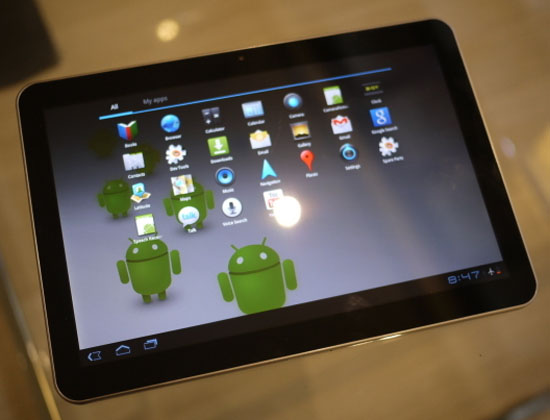 Samsung Galaxy Tablet 10.1 Ice Cream Sandwich
Samsung Galaxy Tablet 10.1 has got Ice Cream Sandwich update and its time to enjoy something new on your same device. So if
Samsung Galaxy Tablet 10.1 Ice Cream Sandwich
Samsung Galaxy Tablet 10.1 has got Ice Cream Sandwich update and its time to enjoy something new on your same device. So if
About Author
