Samsung Galaxy S2 Android 4.0 Download

Android is bringing up the new versions at rapid speed and if you have used the Ice Cream Sandwich of same, then you must be in love with it. Want to taste the same on your Samsung Galaxy S2? Yes, you can do so and this article will teach you to Samsung Galaxy S2 Android 4.0 Download and installation. So let’s proceed with it.

Samsung Galaxy S2 Android 4.0 Download

Image Source: http://en.wikipedia.org/wiki/Samsung_Galaxy_S_II

Disclaimer

Installing the ROM for first time? If this is so, then try this at your own risk. We shall not be responsible for any kind of damage that occur to you or your device.

Prerequisites

  • Be sure to start the process after taking backup of data. You can do it manually or can use any app for the same.
  • Plug in the charger and charge your Samsung S2 for at least 70 percent mark.

Procedure for Samsung Galaxy S2 Android 4.0 Download

  • First of all do the Samsung Galaxy S2 Android 4.0 Downloadfrom here.
  • Download the Odin version 1.85 from here.
  • Press the Volume Down and Home buttons to enter your device into Download Mode. As soon as you enter into Download Mode, you will see the Android Robot or Samsung Logo on the screen.
  • Open Odin on your computer. Use the USB cable to connect your device with computer.
  • One of ID:COM boxes, that you see in the Odin, will turn yellow.
  • Now perform the following steps.

Click PDA button and choose file with ‘CODE’ in its name.

Click Phone and click file ‘MODEM’.

Click on CSC and choose file with CSC in its name.

Click on PIT and tap on the .pit file.

Click on the ‘Start’ button in Odin.

Your Samsung Galaxy S2 will reboot on successful installation.

What’s more? Nothing!! You are done with Samsung Galaxy S2 Android 4.0 Download and installation.

This post is written by PrIyAnGsHu from The Internet Buzzer and Know Tech Better

Samsung Galaxy Tablet 10.1 Ice Cream Sandwich

Samsung Galaxy Tablet 10.1 has got Ice Cream Sandwich update and its time to enjoy something new on your same device. So if you want to do so, follow this step by step guide to get the Samsung Galaxy Tablet 10.1 Ice Cream Sandwich.

Samsung Galaxy Tablet 10.1 Ice Cream Sandwich

Disclaimer

Follow the process at your own risk as it may result in data loss or some other serious damage. We shall not be responsible for any damage that occur to you or your device.

Prerequisites

  • Take the backup of data first. You can do it manually or can also use any app for the same purpose.
  • Charge the device to at least 70 percent mark.

Procedure for Samsung Galaxy Tablet 10.1 Ice Cream Sandwich

  • First of all, download the Samsung Galaxy Tablet 10.1 Ice Cream Sandwich file from here.
  • Download the Odin 1.85 v from here.
  • Enter your device into Download Mode. How? Press Volume Down and Power buttons to do so.
  • Launch the Odin and connect your Tab 10.1 with computer.
  • he message “Added!!!” will appear on successful connection.
  • Now proceed as:

Click PDA button and choose file with ‘CODE’ in its name.

Click Phone and click file ‘MODEM’.

Click on CSC and choose file with CSC in its name.

Click on PIT and tap on the .pit file.

  • Click on ‘Start’ in Odin.

The installation process has started now. It will take around 3 to 5 minutes to get completed. So be patient with it. Once the process is over, you will have Samsung Galaxy Tablet 10.1 Ice Cream Sandwich with you. Do hit the comment section below, if you face any problems during the process.

Samsung Galaxy S2 Software Update

If you are getting bored from the Gingerbread version of Android on your Samsung Galaxy S2, then it’s time to do Samsung Galaxy S2 Software Update. Samsung Galaxy S2 has received the Android Ice Cream Sandwich update. Check out the process of installation for the same in this step by step guide.

Samsung Galaxy S2 Software Update

Disclaimer

The upgrade process can result in data loss or some serious damage as well. So proceed at your own risk. We shall not be responsible for any damage that occur to your device.

Prerequisites

  • To be smart user, it’s good to take the backup of data before tarting with the process.
  • Don’t forget to charge your battery for at least 70 percent.
  • Samsung Kies should be installed on your PC. If it’s not so, then download it from here.

Process for Samsung Galaxy S2 Software Update

  • Install the Samsung Kies on your PC and run the same.
  • Just connect your Galaxy S2 to PC, using USB cable.
  • Samsung Kies will detect your device will pop up if there is any Samsung Galaxy S2 Software Update available or not.
  • Click to start Samsung Galaxy S2 Software Update process.
  • Check the option “I have read all the information” to proceed ahead.
  • Finally, select the Start Upgrade.

Samsung Galaxy S2 Software Update will start now and will take a few minutes to get completed. The process is simple and you need to give commands only, rest is done by Samsung Kies. Still, if you need any kind of help, then do let us know about it in the comment section below.

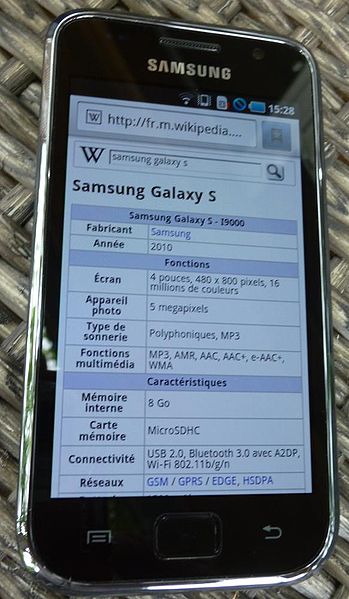
Samsung Galaxy S Upgrade to Ice Cream Sandwich

Got Samsung Galaxy S in your hands and want to enjoy the Android ICS on it? Now it’s possible as Ice Cream Sandwich is available for the same. I am here to teach you Samsung Galaxy S Upgrade to Ice Cream Sandwich process. So let’s proceed ahead.

Samsung Galaxy S Upgrade to Ice Cream Sandwich

Disclaimer

If you are going to try your hands on the ROMs installation process for the first time, then proceed at your own risk. We shall not be held responsible for any damage that occur to you or your device.

Prerequisites

  • It’s better to take the backup of data before opting for the process. Take the backup of SMS, Call Logs etc.
  • Charge the battery to at least 80 percent.
  • Make sure that all the drivers for Samsung Galaxy S are installed on your computer.

Process for Samsung Galaxy S Upgrade to Ice Cream Sandwich

  • Download the Samsung Galaxy S Upgrade to Ice Cream Sandwich from here and Google Apps package from here.
  • Copy and paste both the files to the internal SD of your phone. Of course, first connect your device using USB cable.
  • Enter into CWM Recovery by pressing the Volume Up Button + Home Button+ Power Button.
  • In the main menu of Recovery, navigate as Install zip from sd card -> Choose zip from sd card.
  • Now select the ROM file that you downloaded in the first step.
  • This will install the ROM. Repeat the last two steps to install the Google Apps this time.

Wait for installation to complete. That’s it. Now you are done with Samsung Galaxy S Upgrade to Ice Cream Sandwich process. Cheers!!