

Samsung Galaxy Tablet 10.1 Ice Cream Sandwich
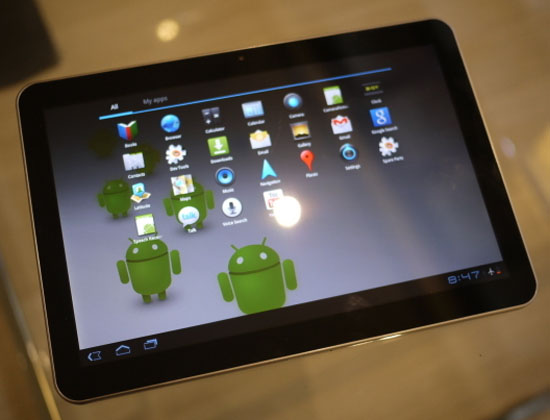
Samsung Galaxy Tablet 10.1 has got Ice Cream Sandwich update and its time to enjoy something new on your same device. So if you want to do so, follow this step by step guide to get the Samsung Galaxy Tablet 10.1 Ice Cream Sandwich.
Disclaimer
Follow the process at your own risk as it may result in data loss or some other serious damage. We shall not be responsible for any damage that occur to you or your device.
Prerequisites
- Take the backup of data first. You can do it manually or can also use any app for the same purpose.
- Charge the device to at least 70 percent mark.
Procedure for Samsung Galaxy Tablet 10.1 Ice Cream Sandwich
- First of all, download the Samsung Galaxy Tablet 10.1 Ice Cream Sandwich file from here.
- Download the Odin 1.85 v from here.
- Enter your device into Download Mode. How? Press Volume Down and Power buttons to do so.
- Launch the Odin and connect your Tab 10.1 with computer.
- he message “Added!!!” will appear on successful connection.
- Now proceed as:
Click PDA button and choose file with ‘CODE’ in its name.
Click Phone and click file ‘MODEM’.
Click on CSC and choose file with CSC in its name.
Click on PIT and tap on the .pit file.
- Click on ‘Start’ in Odin.
The installation process has started now. It will take around 3 to 5 minutes to get completed. So be patient with it. Once the process is over, you will have Samsung Galaxy Tablet 10.1 Ice Cream Sandwich with you. Do hit the comment section below, if you face any problems during the process.
-
 Ice Cream Sandwich Galaxy 10.1
Got Samsung Galaxy Tab 10.1 in your hands but still compromising with the same Android Honeycomb version on it? Ahh!! It’s time to
Ice Cream Sandwich Galaxy 10.1
Got Samsung Galaxy Tab 10.1 in your hands but still compromising with the same Android Honeycomb version on it? Ahh!! It’s time to
-
 Technical Specs and Review of Samsung Galaxy Note 2
Samsung Galaxy Note 2 is the latest flagship device from the house of Samsung. Here in this article, we are with complete details
Technical Specs and Review of Samsung Galaxy Note 2
Samsung Galaxy Note 2 is the latest flagship device from the house of Samsung. Here in this article, we are with complete details
About Author
